December 2025
Integrate SAML 2.0 Single-Sign On (SSO)
The SAML 2.0 Single Sign-On integration allows your users to sign into an external system (like your company's intranet or platform) and automatically get authenticated into HowToo without needing to login separately.
Important
The learner must already have an account in the HowToo platform for authentication to succeed.
Get started
A. Authentication flow
The HowToo SAML 2.0 implementation supports IdP-initiated SSO. To do this:
- The user logs in directly to their IdP portal.
- The user selects the HowToo application from their available apps.
- The IdP sends an authenticated SAML response to HowToo’s ACS endpoint.
- HowToo verifies the response and grants access.
B. Integration requirements
HowToo provides the following details for your IdP configuration:
- Entity ID: https://api.howtoo.co/v1/auth/saml
- Assertion Consumer Service (ACS) URL: https://api.howtoo.co/v1/auth/saml/callback
- NameID format: urn:oasis:names:tc:SAML:1.1:nameid-format:emailAddress
- Binding: HTTP-POST
- Signature and encryption: Supported (RSA-SHA256)
Your IdP must be configured to send SAML assertions to HowToo using the above endpoints. The following are the mandatory attributes:
- siteURL: your company’s HowToo url
- email - maps to user's email in your IdP
- firstName - maps to user's first name in your IdP
- lastName - maps to user's last name in your IdP
Other IdP info required by HowToo:
- IdP Entity ID/Issuer name - this is a unique name for your SAML app in your IdP
- dP certificate
Configure SAML 2.0 SSO
Once integrated, Admins can now configure SAML SSO in HowToo. To do this:
- Go to Settings > Dashboard > Integrations.
- Locate SAML SSO from the available integrations, then select ‘Configure’.
- Enter your IdP details.
- Optionally enable user auto-provisioning and configure timing settings.
- Save and test the configuration.
Customers will also be able to configure SP-initiated SSO:
- The user navigates to the HowToo login page.
- The user selects ‘Login via SSO’.
- The user is redirected to the IdP for authentication.
- Upon successful login, the IdP returns a signed SAML assertion to HowToo’s Assertion Consumer Service (ACS) endpoint.
HowToo then verifies the assertion and grants access.
November 2025
Create lesson versions (advanced)
When a creator updates a lesson that has already been published and allocated to learners, it must be republished for the changes to apply. Republishing creates a new version, and HowToo provides two options for how the update is released to learners.
-
Update current version
This publishing option will push updates regardless of your learners progress. Use this when you want the updated lesson to be pushed immediately to the academy, even if your learners are mid progress. -
Publish as version
This publishing option will create a new version of the lesson available after completion. Use this if you want your learners to complete the version they are currently working on before the updated version becomes available.
To publish an updated lesson:
- From the storyboard view of the lesson, select ‘Publish updates’.
- Choose how the update is delivered to learners.
- Select ‘Publish updates’.
Admins can report and track the lesson versions. To do this:
- Go to Reports > Lessons tab.
- Locate the lesson you wish to track.
Here, you can see all the learners allocated to this lesson, their progress, and the version they were on.
Delete users
Admins can now remove users from the platform. This feature allows for the permanent removal of a user's account and all associated learning history.
To do this:
- Go to Settings > User Management > Users.
- Locate the user you wish to delete.
- Select the three-dot menu, and choose ‘Delete’.
- From the pop-up window, choose ‘Delete permanently’.
After the confirmation, the deleted users are removed from the platform. This ability is available for active, inactive, and pending users.
October 2025
Generate AI audio
You can now use AI to generate audio for your HowToo lessons. This feature allows you to:
- Create audio from text
- Change the voice in an uploaded audio file
- Transcribe text from audio
Here’s how creators can use this feature:
- From a HowToo lesson block that supports audio elements, click the audio object, then select ‘AI generate’ from the left panel menu.
- Choose one of the three different options: Text to speech, Voice Changer, Transcribe Audio.
A. For Text to speech:
This option allows you to create audio from text:
- Enter the text in the text box.
- Go to the Voices tab, then preview the voices by selecting the play button.
- Once you have taken your pick, select ‘Use’.
- You will be redirected to the Text to speech tab, where you can access additional options under Advanced settings, including speed, stability, similarity, style exaggeration, and speaker boost.
- Select Generate.
- Select ‘Use audio’ once done generating.
B. For Voice Changer:
This option lets you upload an audio file, such as your own recording, and convert it into an AI selected voice of your choice.
- Upload your audio to the Voice changer window. You can do this by either uploading from your media library or your computer.
- Once uploaded, you may now select an AI voice to change the voice into from the Voices tab.
- Go to the Voices tab, then preview the voices by selecting the play button.
- Select ‘Use’ to your chosen voice.
- Back in the Voice Changer tab, select Generate.
- Select ‘Use audio’ once done generating.
C. For Transcribe Audio:
This option allows you to generate a text transcript of the audio.
- When you select this option, a window will appear at the bottom of the audio object, select ‘Transcribe’.
- The transcription will appear at the bottom once done.
Generate AI image
You can now use AI to generate images for your HowToo lessons. This feature allows you to generate AI images from two locations:
- Directly from a lesson block that supports images
- From the Media Library
Here’s how creators can use the feature:
A. Create an image from scratch:
This option allows you to create audio from text. To do this:
- Click the image, then select ‘AI generate’ from the left panel menu.
- Enter your desired image description in the text prompt box. For example, "image of two people discussing at a desk".
- You can also specify the image style, such as (e.g., photorealistic, illustrated) or select the aspect ratio (e.g., 1:1).
- Select ‘Generate’.
- Once generated, you can either choose to regenerate the image or use it.
- Select ‘Use image’ to insert the image into your lesson.
B. Tweak an existing image:
This option allows you to use an existing image and have AI tweak it. To do this:
- Upload your existing image.
- Enter your prompt describing the changes you want.
- Select ‘Generate’.
You can have multiple iterations of the generated image until you achieve the desired result.
June 2025
Create lesson versions
Pro users with an Academy can now update leesons without disrupting learners.
We’ve made it easier to update lessons without disrupting learner progress.
What’s new:
New lesson versions can be published anytime and learners won’t lose their progress.
-
Learners will:
Start the latest version if they haven’t begun.
Continue their current version if in progress.
Choose to review their old version or start the new one if completed.
Progress and reports now reflect the version each learner is working on.
You can now view version numbers and access historical data in reports and exports.
These changes help keep content up to date while protecting learner experience and tracking.
Accessing the Lesson versioning
- Go to the storyboard of the lesson you wish to update
- Make your updates to the lesson
- Choose the 'Publish updates' option
- You can now see the new version number and publish by selecting 'Publish updates'
- If the learner has already started the course they will continue to access the previous version. If they have no attempted the lesson yet they will automatically access the new version.
- Lesson reports will show which version each learner is on, with filters for better tracking
March 2025
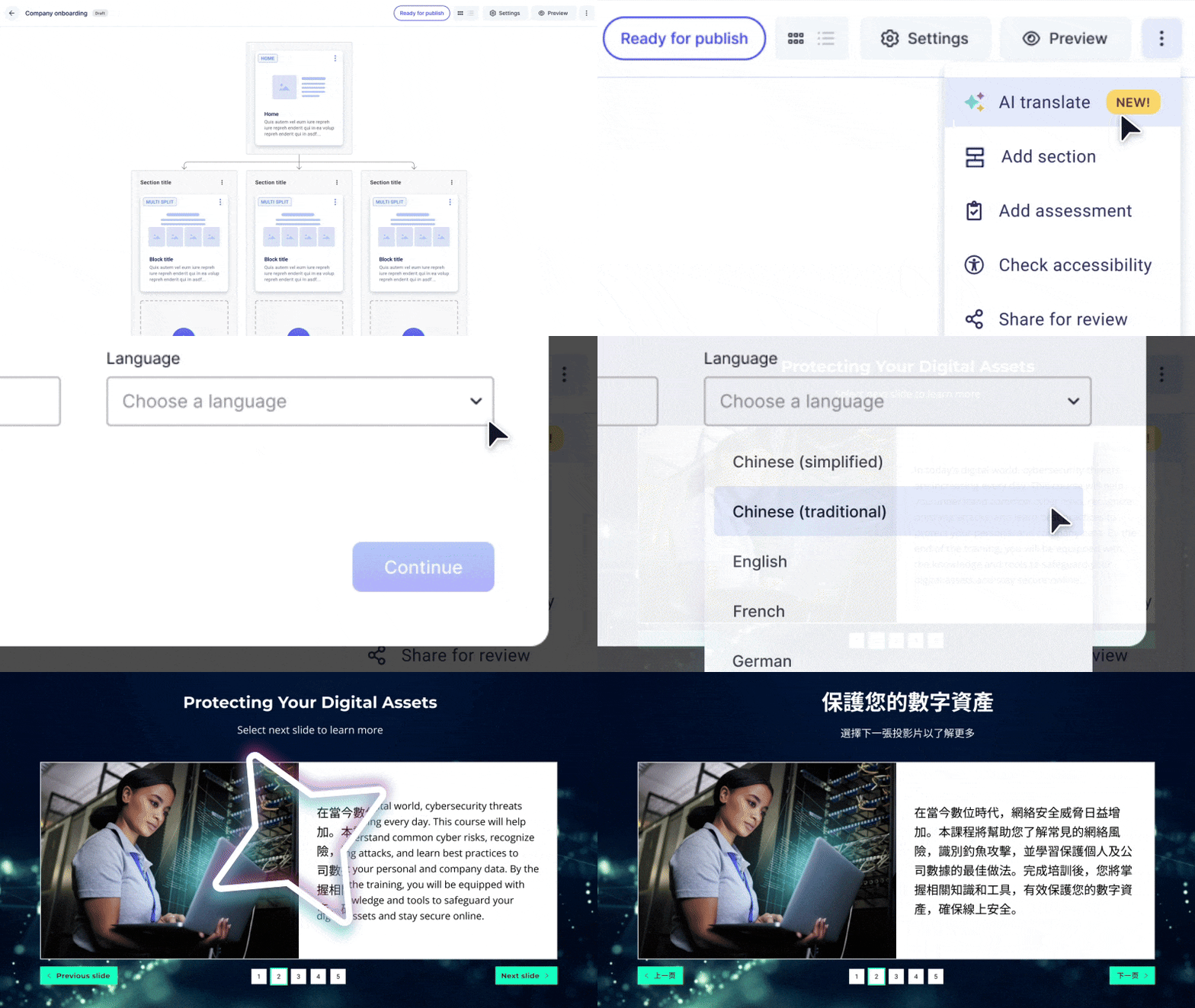
AI translate
Pro users can now translate entire lessons and themes in minutes.
With this feature you can:
- Auto-translate whole lessons into a range of different languages
- Auto-translate the button text in a theme
Accessing the AI translate feature
- Go to the storyboard of the lesson you wish to translate
- Locate the 'AI create' option
- Select the three dots on the right hand side of the screen
- Click 'AI create'
Lesson categories (aka folders)
You can now organise your lessons into categories, making it easier to sort and find them by topic of theme.
Accessing lesson categories
- Go to the lesson dashboard
- Locate the '+New category' button
- Create a new category (and this will now be accessible under the 'All lessons' tab)
Allocating lesson to a category
- Go to the lesson dashboard
- Select the three dots on the thumbnail for the lesson you wish to categorize
- Choose a category for this lesson (and this lesson will not be under that category under the 'All lessons' tab)
Note: Lessons can be allocated to mulitple categories.
Enhanced Academy reporting
You can now download detailed learner data for all lessons.
Accessing enhanced Academy reporting:
- Go to Reports/Dashboard
- Choose 'Summary' and what you want to export for a high level report
- Choose 'Detailed' and what you want to export for a more detailed report
- Choose 'Template' to create a template of a report you would like to run again and again
Child safety ready-to-go lessons
Our ready-to-go library now includes child safety training modules to help you ensure you are meeting your compliance requirements and promoting a culture of child safety. Pro customers can access these lessons by selecting 'Create new lesson' and 'Explore our lesson library'.
Click here for a full demo of these new features.
January 2025
Button text feature
The new button text feature in HowToo lets you customize the default button labels in your theme. This feature allows for flexibility, personalization and translations, ensuring that your lessons align with your brand’s voice, tone and audience.
With this feature, you can:
- Change default button labels, such as 'Back' or 'Next', to suit your preferences.
- Apply changes across the navigation menus and blocks in your lessons.
This article will guide you through how to use the button text feature effectively.
Accessing the button text feature
-
Go to the theme designer
- Navigate to the ‘Theme designer’ tab in your HowToo dashboard.
- Either create a new theme or edit a draft.
-
Locate the default button labels option
- Within the theme editor, you’ll see an option labeled ‘Default button labels within the ‘General’ category.
- Click on this option to access the editable fields.
Customising button text
-
Select the button label you want to edit
- Examples of button labels include ‘Home’, ‘Back’ and ‘Next’.
- Click on the field corresponding to the label you wish to change.
-
Enter your custom text
- Replace the default text with your preferred wording. For instance, you can change ‘Next’ to ‘Continue’ and Back’ to ‘Previous
-
Preview changes
- Where possible, changes can be previewed on the right hand side of the screen. Each field has an information icon next to it, describing where the text appears in your lesson. For example, ‘Home’ appears in the navigation menu.
-
Save changes
- Click ‘Apply’ to save your changes. When ready, publish your theme to make it available for use.
Additional Features
- Multilingual support: You can input text in different languages, making your lessons accessible to a global audience.
- Apply changes: Once you’ve made your edits, click the "Apply" button to save your changes.
- Publish your theme: To see the updated labels in your lessons, publish the theme and apply it to your lesson.
Tips
- If you’re unsure where a specific button label appears, use the preview icons for guidance.
- Avoid lengthy text to maintain a clean and professional look for your buttons.
- Test your theme in a lessons to ensure the new labels display as expected.
FAQs
- Can I edit button text directly in a lesson? Some user generated buttons within blocks such as click and reveal can be directly edited in a lesson while buttons that have global functionality such as “Submit” and “Next” can only be customized within the theme designer.
- Will these changes affect existing lessons? No. Changes will only apply to lessons using the updated theme after it has been published.
Comments
0 comments
Please sign in to leave a comment.